
American Express gives you a beautiful PDF every month — and almost no practical way to get that history into a spreadsheet. The CSV export in online banking covers recent activity only, and everything older lives in PDF billing statements. If you need months of Amex data in Excel — for expense reports, tax deductions, a bookkeeping backlog, or splitting business from personal spend — this guide walks through the entire process step by step, including the credit-card-specific gotchas (signs, payments, and statement periods) that trip people up.
Short on time? Download the PDF from americanexpress.com, upload it to our American Express converter, and download clean Excel or CSV in under a minute. First conversion free, no signup.
Why Amex Statements Are Awkward to Get Into Excel
Three things make American Express statements harder than a typical bank statement:
- Limited export window. The CSV/Excel download in your Amex account covers a limited range of recent transactions. Older periods — the ones you need at tax time — are PDF-only.
- Statement structure. Amex PDFs group activity by card member and by category (payments and credits, new charges, fees, interest), each in its own section. Copy-pasting produces fragments from several mini-tables, not one list.
- Credit-card sign conventions. On a card statement, a charge increases what you owe and a payment decreases it. Get the signs wrong during a manual retype and your expense totals are silently inflated or deflated.
The fix is the same AI-conversion workflow we use for bank statements — it understands Amex's sectioned layout and keeps the signs straight. Four steps, start to finish.
Step 1: Download Your Amex Statement as a PDF
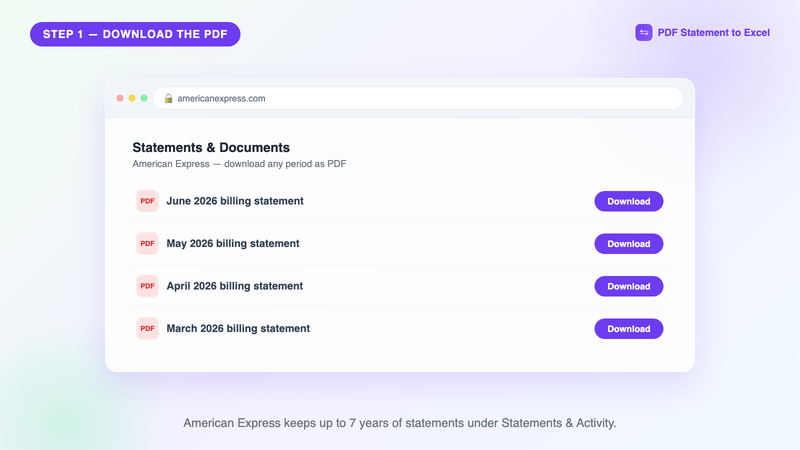
American Express keeps up to seven years of billing statements available online:
- Log in at americanexpress.com (or the Amex app).
- Open Statements & Activity from the account menu.
- Choose Billing Statements — you'll see a list of statement periods.
- Click the PDF link next to each period you need and save the files.
Two details worth knowing. First, Amex statement periods follow your billing cycle, not the calendar month — a "June statement" might run May 14 to June 13. Keep that in mind when you're assembling a full tax year: you'll typically need 13 statements to cover 12 months. Second, if you have employee cards, all card members appear in the same PDF, already labeled — the converter preserves those descriptions so you can filter by card member in Excel later.
Step 2: Upload the PDF to the Converter
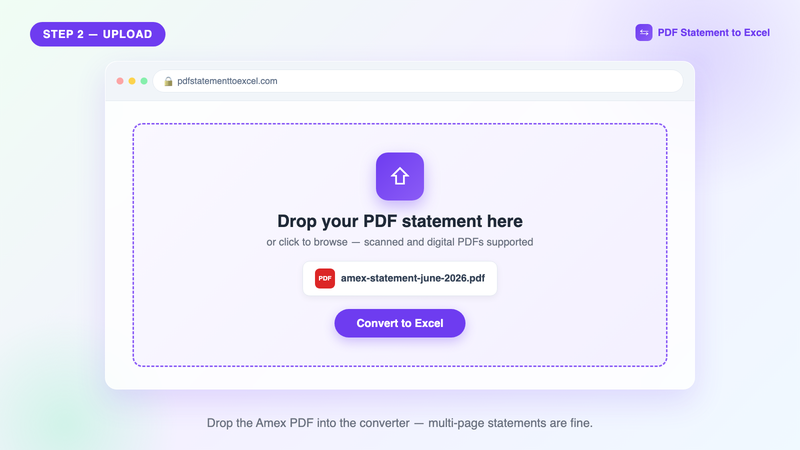
Head to the American Express converter page (or the homepage — same engine) and drop the PDF in. Multi-page statements are normal for Amex; upload the whole file. You can also queue several months back-to-back.
Privacy note, since card statements show your spending life in detail: uploads are encrypted in transit, files are deleted after conversion, and your documents are never used for model training. The full security checklist we recommend applying to any tool is in securely handling client statements.
Step 3: The AI Reads Every Section
Click Convert. The AI walks the document the way you would: it finds the payments-and-credits section, the new-charges section for each card member, fees and interest, and merges everything into one chronological transaction list. The progress you see reflects real stages — pages read, transactions extracted, totals validated.

The validation stage uses the statement's own arithmetic: previous balance, plus new charges and fees, minus payments and credits, must equal the new balance printed on page one. If every extracted row is right, that equation closes exactly — the same closing-balance discipline from our statement reconciliation guide, applied automatically. It's what makes the output trustworthy enough for tax records, where a transposed digit is not a small problem.
Step 4: Download Excel — With the Signs Done Right
Download the finished file. Here's what the output looks like and why each column matters for a credit card:
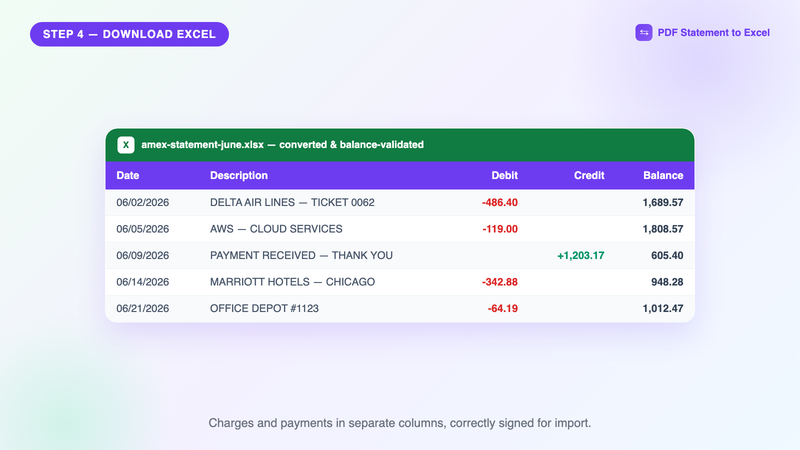
- Charges appear as debits (money you spent) and payments/credits as credits — refunds from merchants land on the credit side too, so your net spend is accurate.
- Merchant descriptions are kept intact, including the city/reference detail Amex appends — useful for categorizing and for matching receipts.
- Dates are real dates with years resolved across the billing-cycle boundary (a Dec 28 charge on a January statement gets the right year).
- The balance column reconciles from previous balance to new balance, so anyone auditing your spreadsheet can verify it in one SUM.
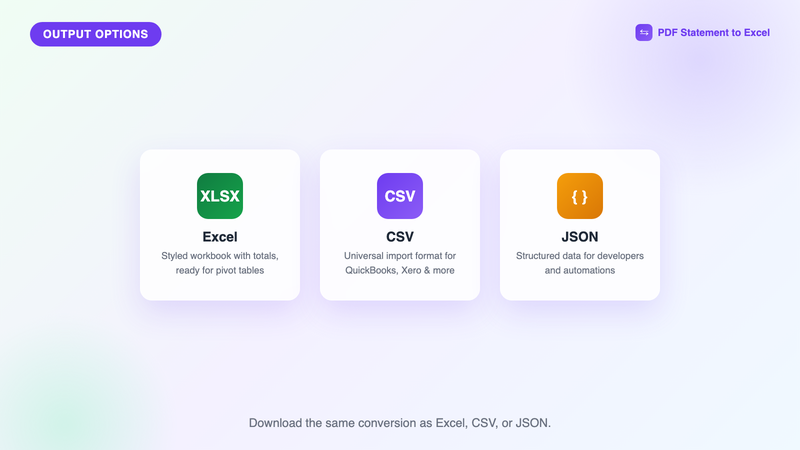
Need a different format? The same conversion downloads as CSV for accounting imports or JSON for automations:
Method Comparison for Amex Data
| Method | Historical coverage | Time per statement | Sign accuracy |
|---|---|---|---|
| AI converter (this site) | Any statement you can download (7 yrs) | Under 1 minute | Validated against statement totals |
| Amex online CSV export | Recent activity only | 2 minutes | Exact, but limited range |
| Manual retyping | Anything | 45–90 min (Amex statements run long) | Error-prone, signs easy to flip |
| Generic OCR tool | Anything | 10–20 min + cleanup | Poor — sections confuse it, no validation |
For how our converter stacks up against other dedicated tools, see the 2026 converter comparison.
What to Do With the Excel File
Expense reports and tax deductions
Filter by merchant or card member, tag business expenses, and pivot by month. Because refunds are correctly signed, your deductible totals are net of returns — the number your accountant actually wants. Our guide to categorizing transactions in Excel has ready-made formulas.
Accounting software import
Use the CSV output. For QuickBooks, map charges to the correct expense accounts on import (guide); for Xero, the signed single-amount format imports directly (guide). Import oldest statement first and spot-check the first and last balance of each month.
Spend analysis
A year of Amex data in one sheet answers questions the app can't: subscription creep, per-vendor annual totals, month-over-month category trends. One pivot table, five minutes.
Doing a full tax year? Convert all 12–13 statements, then check one number: the sum of every Amount column across months should equal (total payments − total charges) across the same period. If that ties out, your whole year is verified.
Business, Corporate, and Delta/Platinum Cards
The workflow is identical across Amex consumer cards (Green, Gold, Platinum, Delta SkyMiles, Blue Cash) and business products (Business Gold, Business Platinum, Blue Business). Business statements are usually longer and multi-card-member, which makes automated conversion more valuable, not less. Corporate card programs with central billing also convert — the per-employee sections come through labeled.
Start with last month's statement: convert your first Amex PDF free — no signup required.
Frequently Asked Questions
How do I export old American Express statements to Excel?
Amex's built-in CSV export only covers recent activity. For older periods, download the PDF billing statement from Statements & Activity (up to 7 years available), then convert the PDF to Excel with an AI converter — the whole process takes under two minutes per statement.
Are charges and payments signed correctly in the converted file?
Yes. Charges appear as debits and payments, refunds, and credits appear as credits, matching the statement's own math: previous balance plus charges minus payments must equal the new balance. The converter validates that equation before you download.
Can I convert Amex Business and corporate card statements?
Yes. Business and corporate statements — including multi-card-member statements with employee cards — convert the same way, and card member labels are preserved so you can filter spending per person in Excel.
Why do I need 13 statements to cover a tax year?
Amex statement periods follow your billing cycle, not calendar months — a statement might run May 14 to June 13. Covering January 1 to December 31 therefore usually spans 13 consecutive billing statements.
Convert your Amex statement now
Upload the PDF and download tax-ready Excel or CSV in under a minute. First conversion free — no signup required.
Get Started Free