
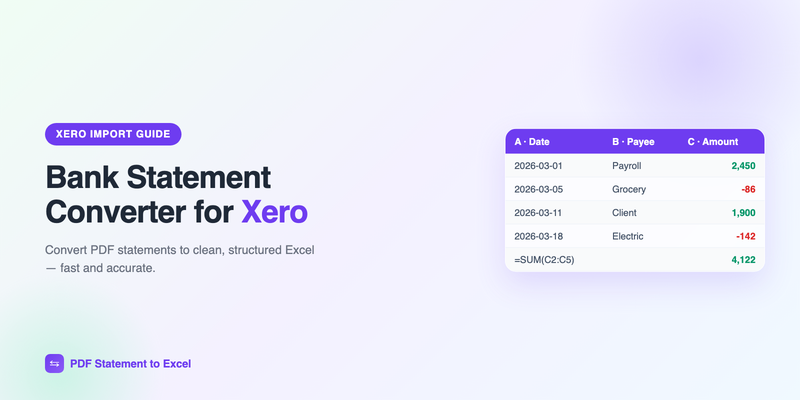
Xero can pull transactions from thousands of banks through live feeds — but the feed only starts from the day you connect it. Historical months, statements from unsupported banks, and PDF-only records from clients all have to come in another way. That's where a bank statement converter for Xero comes in: it turns any PDF statement into a CSV that Xero imports cleanly, so your reconciliation history is complete.
Short on time? Upload your PDF statement to our converter, download the CSV, then import it in Xero under Bank account → Manage account → Import a statement. First conversion is free, no signup.
Why Xero Users Need a Statement Converter
Xero's bank feeds are excellent when they work, but four situations leave you with a PDF and no feed:
- Historical data. Feeds don't backfill. If you connect a feed in July, January–June has to be imported manually — and most banks only offer those older months as PDF statements.
- Unsupported banks. Smaller credit unions, neobanks, and many international banks don't have Xero feed coverage at all.
- Broken or lapsed feeds. Feeds occasionally disconnect and leave gaps of days or weeks that need to be patched with a manual import.
- Client records. Accountants and bookkeepers onboarding a new client often receive a folder of PDF statements — sometimes scans — covering a year or more of activity.
In every case the fix is the same: convert the PDF to a properly formatted CSV and import it. The catch is the phrase "properly formatted" — Xero is strict about what it accepts.
What Xero Requires From an Imported CSV
Xero's manual statement import accepts CSV files with, at minimum, a Date and Amount column, plus optional Payee, Description, Reference, and Cheque Number columns. The rules that cause most failed imports:
- One header row, then data — no title rows, page numbers, or bank logos above it.
- Consistent dates. Every row must use the same format (e.g. DD/MM/YYYY or MM/DD/YYYY), and it must match what your Xero organisation expects.
- Signed amounts in a single column. Money out is negative, money in is positive. Separate debit/credit columns must be merged into one signed Amount column.
- Plain numbers. No currency symbols, no thousands separators that conflict with your locale, no parentheses for negatives.
- No summary rows. Opening balance, closing balance, and "Total" lines from the statement must not appear as transactions, or your reconciliation will be off.
Hand-cleaning a copy-pasted PDF to meet those rules is where most of the time goes. A purpose-built converter outputs a table that already satisfies them.
Step-by-Step: PDF Statement Into Xero
- Convert the PDF. Upload the statement to the converter and download the result as CSV. Every transaction comes out with a clean date, description, and amount — validated against the statement's running balance.
- Check the totals. Open the CSV and confirm the sum of the Amount column equals the net change on the statement (closing balance minus opening balance). This 30-second check guarantees the import will reconcile.
- Import in Xero. Go to the bank account in Xero, then Manage account → Import a statement, and upload the CSV. Xero shows a column-mapping screen — confirm Date, Amount, and Description are mapped correctly and check the date format matches.
- Reconcile as usual. The imported lines appear on the Reconcile tab exactly like feed transactions. Xero's bank rules and suggested matches work on them normally.
Tip: import statements in chronological order, oldest month first. Xero flags potential duplicates during import, and working in order makes any overlap with an existing feed easy to spot and skip.
Converter Options Compared
| Approach | Time per statement | Xero-ready output? | Best for |
|---|---|---|---|
| AI converter (this site) | Under 1 minute | Yes — clean dates, signed amounts, no summary rows | Any bank, any volume, scanned or digital PDFs |
| Manual copy-paste + cleanup | 30–60 minutes | Only after heavy editing | A one-off statement with few transactions |
| Generic OCR software | 10–20 minutes + fixes | Rarely — needs reformatting | Simple single-column layouts |
| Asking the bank for CSV | Days, if available | Sometimes | Recent periods at banks that offer exports |
For a broader look at the tools in the first row, see our 2026 comparison of bank statement converters.
Common Xero Import Errors (and Fixes)
"Import failed" or rows rejected
Almost always a date-format mismatch — the CSV says 07/03/2026 meaning March 7th, but Xero reads July 3rd, or vice versa. Set the correct format on the mapping screen, or standardize the CSV to an unambiguous format before importing.
Duplicated transactions
Happens when an import overlaps a live feed period. Delete the duplicated statement lines in Xero (Manage account → Bank statements), or trim the overlap out of the CSV before importing.
Balances don't reconcile after import
Usually a stray summary row imported as a transaction, or a missed page of transactions. Because our converter validates every row against the statement's own running balance, both problems are caught before the CSV ever reaches Xero — the same balance-check discipline we recommend in our bank statement reconciliation guide.
For Accountants: Batch Onboarding Client Statements
Onboarding a client with 12–24 months of PDF-only history is the classic use case. Convert the statements in a batch, spot-check opening and closing balances per month, then import into Xero oldest-first. What used to be a day of data entry becomes under an hour — and the same workflow applies to QuickBooks clients, as covered in our QuickBooks converter guide. If you handle client documents regularly, make sure your tooling meets the security bar described in how to securely handle client bank statements: encrypted uploads, automatic deletion, and no training on your data.
Get the missing months into Xero today — convert your first statement free on the homepage, no signup required.
Frequently Asked Questions
Can I import a PDF bank statement directly into Xero?
No — Xero's manual import only accepts CSV (and OFX/QIF) files, not PDFs. Convert the PDF to CSV first, then import it in Xero under Bank account, Manage account, Import a statement.
What CSV format does Xero need for bank statement imports?
At minimum a Date column and a single signed Amount column (money out negative, money in positive), with one header row, consistent date formatting, plain numbers without currency symbols, and no summary or balance rows.
Why did my Xero statement import fail or show wrong dates?
The most common cause is a date-format mismatch — for example the CSV using MM/DD/YYYY while Xero expects DD/MM/YYYY. Confirm the format on Xero's column-mapping screen during import, or standardize the dates in the CSV before uploading.
How do I get historical transactions into Xero if the bank feed only just started?
Bank feeds don't backfill. Download the older months as PDF statements from your bank, convert each to CSV, and import them oldest-first. Xero flags overlapping duplicates during import so you can skip them.
Get your statements into Xero
Convert any PDF bank statement to a Xero-ready CSV in under a minute. First conversion free — no signup required.
Get Started Free