
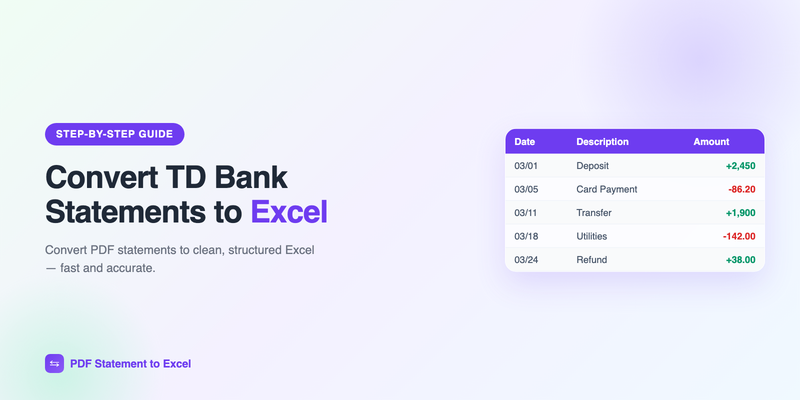
TD Bank is one of the ten largest banks in the United States, and like most major banks it only offers statements as PDF downloads once they're a few months old. If you need to convert a TD Bank statement to Excel — for bookkeeping, taxes, a loan application, or an expense audit — you have two real options: retype every transaction by hand, or convert the PDF automatically. This guide covers both, plus the quirks specific to TD Bank statement layouts that trip up generic converters.
Short on time? Upload your TD Bank PDF to our TD Bank statement converter and download a clean Excel or CSV file in under a minute. Your first conversion is free — no signup required.
How to Download Your TD Bank Statement as a PDF
Before you can convert anything, you need the PDF. TD Bank keeps up to seven years of statements available in online banking:
- Log in to TD Bank online banking at onlinebanking.tdbank.com, or open the TD Bank mobile app.
- Select the account you need — checking, savings, or credit card.
- Open "Statements & Documents." On the website this lives in the account menu; in the app, tap the account and look for Statements.
- Pick the statement period and click the PDF icon to download it.
Note that TD Bank's CSV/QFX export in online banking only covers recent activity — typically the current period plus a limited history window. For anything older, the PDF statement is usually the only record you can download, which is exactly why PDF conversion matters.
Method 1: Convert the TD Bank PDF Automatically (Recommended)
An AI-powered converter reads the statement the way a person does — it understands the table structure, dates, descriptions, and amounts — then writes them into a clean spreadsheet. Here's the whole workflow:
- Upload the PDF. Drag your TD Bank statement into the converter on our homepage. Multi-page statements and multiple files are fine.
- Wait a few seconds. The AI extracts every transaction — date, description, debit, credit, and running balance — and validates the math against the statement's opening and closing balances.
- Download Excel or CSV. You get one clean table with proper column types: real dates, numeric amounts, and no page headers or footers mixed into the data.
Because the extraction is checked against the statement's own balance column, single-digit OCR errors that would silently corrupt your numbers get caught instead of passed through. That balance check is the main thing separating a converter you can trust from one you have to audit line by line — we explain why in OCR vs AI conversion.
Method 2: Manual Copy-Paste (and Why It Fails on TD Statements)
You can open a TD Bank PDF, select the transaction table, copy it, and paste it into Excel. For a statement with a dozen transactions, that might be fine. For a normal month it usually isn't, because of how TD Bank lays out its statements:
- Sectioned transactions. TD checking statements split activity into separate sections — Deposits, Electronic Payments, Checks Paid, Service Charges — each with its own mini-table. Pasting them produces several fragments you have to stitch together and re-sort by date.
- Wrapped descriptions. Long payee names (think "ACH DEBIT, ELECTRONIC PMT" entries) wrap onto a second line, which Excel pastes as a separate row with no date or amount.
- Dates without years. TD prints transaction dates as MM/DD. If your statement spans a year boundary (a December–January period), you have to add the correct year to each row yourself.
- Text-formatted numbers. Pasted amounts often arrive as text, so SUM() returns 0 until you clean every cell.
Budget 30–60 minutes per statement for manual cleanup, and expect to make at least one typo. If you're processing statements every month — or handling client statements as a bookkeeper — that time adds up fast, as we showed in our guide to automating bookkeeping data entry.
Comparing Your Options
| Method | Time per statement | Accuracy | Handles TD's sectioned layout? |
|---|---|---|---|
| AI converter | Under 1 minute | ~99%+, balance-validated | Yes — merges sections into one sorted table |
| Manual copy-paste | 30–60 minutes | Prone to typos and missed rows | No — sections paste as fragments |
| Generic OCR tool | 5–15 minutes + cleanup | Misreads digits, no validation | Rarely — treats each section as noise |
| TD online CSV export | 2 minutes | Exact | Only for recent activity, not archived PDFs |
TD Bank Statement Types You Can Convert
Personal and business checking
TD Convenience Checking, TD Beyond Checking, and TD Business statements all follow the sectioned layout described above. A good converter merges the sections and restores chronological order automatically.
Savings and money market
These are simpler — fewer transactions, plus interest lines. The converter captures interest payments as credits so your interest income is easy to total for tax time.
TD credit cards
Credit card statements reverse the sign convention (purchases are positive, payments negative). Converted output keeps debits and credits in separate columns so nothing gets miscategorized when you import it into your books.
TD Canada Trust
If your account is with TD Canada Trust rather than TD Bank in the US, the statement layout differs but the process is identical — we support both. See the dedicated TD Canada Trust converter page.
What To Do With the Excel File
Once the statement is in Excel, the usual next steps take minutes instead of hours:
- Reconcile: match the converted rows against your books and confirm the closing balance — our reconciliation best-practices guide walks through this.
- Import to accounting software: the CSV output imports directly into QuickBooks, Xero, and similar tools.
- Categorize spending: use formulas or pivot tables to group transactions — see how to categorize bank transactions in Excel.
Always verify the closing balance. Whichever method you use, check that the last running balance in your spreadsheet equals the closing balance printed on the statement. If they match, every debit and credit in between was captured correctly.
Is It Safe to Upload a Bank Statement?
A bank statement contains your name, address, account number, and transaction history, so the converter you choose matters. Look for encrypted uploads (HTTPS), automatic file deletion after conversion, and a clear statement that your documents are never used to train AI models. We do all three — files are processed, delivered, and deleted. For a deeper checklist, especially if you handle client documents professionally, read how to securely handle client bank statements.
Ready to skip the retyping? Convert your first TD Bank statement free on the TD Bank converter page — no signup needed.
Frequently Asked Questions
How do I convert a TD Bank statement to Excel for free?
Download your statement as a PDF from TD Bank online banking, upload it to pdfstatementtoexcel.com, and download the Excel or CSV output. Your first conversion is free and no signup is required.
Why does copy-pasting a TD Bank statement into Excel come out messy?
TD Bank statements split transactions into separate sections (deposits, electronic payments, checks paid), wrap long descriptions onto extra lines, and print dates without years. Pasting produces fragmented rows that need extensive manual cleanup, which is why an AI converter that understands the layout is faster and more accurate.
Can I convert TD Bank credit card statements too?
Yes. TD credit card statements convert the same way as checking and savings statements. The output keeps debits and credits in separate columns so payments and purchases stay correctly signed when you import them into accounting software.
Does this work for TD Canada Trust statements?
Yes. TD Canada Trust statements use a different layout from US TD Bank statements, but both are supported. Upload the PDF and you'll get the same clean Excel or CSV output.
Convert your TD Bank statement now
Upload your PDF and download clean Excel or CSV in under a minute. First conversion free — no signup required.
Get Started Free