
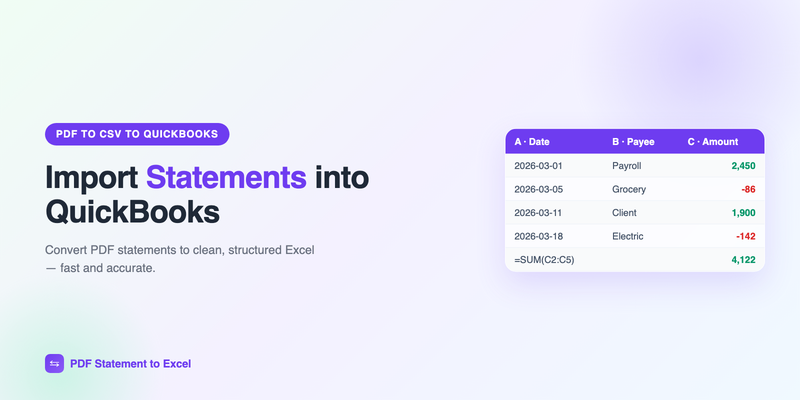
QuickBooks is happiest when your bank feeds transactions in automatically. But bank feeds don't cover everything — historical periods before you connected the feed, accounts QuickBooks won't link, closed accounts, or a bank that simply isn't supported. In all of those cases you're left with PDF statements and a gap in your books. Converting those statements to a QuickBooks-friendly format fills the gap.
This guide explains how to get transactions from a PDF bank statement into QuickBooks Online or Desktop, cleanly, without typing them one by one.
The short version: convert the PDF statement to a clean spreadsheet with PdfStatementToExcel, format three columns (Date, Description, Amount), save as CSV, and import through QuickBooks' file upload. Details below.
When you need this (and when you don't)
If your bank feed is connected and current, let it do the work. Reach for statement conversion when:
- You're catching up historical transactions from before the feed was connected.
- QuickBooks can't connect to your bank, or the connection keeps breaking.
- You're working with a closed account or one the client can only provide as PDFs.
- You're a bookkeeper onboarding a new client who hands you a stack of PDF statements.
Step 1: Convert the PDF to a spreadsheet
- Open the converter and upload the bank statement PDF.
- Download the result as Excel or CSV — one row per transaction, with date, description, and amount.
Step 2: Format for QuickBooks
QuickBooks Online accepts a simple three- or four-column CSV. Get your file into one of these shapes:
| Format | Columns |
|---|---|
| 3-column | Date, Description, Amount (one signed amount — negatives for money out) |
| 4-column | Date, Description, Credit, Debit (money in and money out in separate columns) |
A few formatting rules that prevent import errors:
- Date format: use a single consistent format (QuickBooks lets you tell it which one during import).
- One amount convention: either signed amounts in one column, or split credit/debit — not both.
- No stray rows: remove headers, subtotals, and running-balance columns QuickBooks doesn't need.
- Save as CSV (QuickBooks Online) or prepare for your import tool of choice.
Step 3: Import into QuickBooks
QuickBooks Online
- Go to Transactions → Bank transactions.
- Choose Upload from file (under the dropdown near "Link account").
- Select your CSV, pick the account, and map your columns to Date, Description, and Amount.
- Review and confirm the import, then categorize the transactions as usual.
QuickBooks Desktop
Desktop imports typically use a QBO/QFX file or a third-party CSV-to-QBO converter. Prepare the clean CSV the same way, then convert it to the format your version accepts before importing through File → Utilities → Import.
Reconcile after importing: once transactions are in, run a reconciliation against the statement's closing balance so you know nothing was missed or duplicated.
Avoiding duplicates
The most common QuickBooks import mistake is double-counting: importing a statement for a period the bank feed already covered. Before you import, check the date range against what's already in the account, and only import the gap. If you do create duplicates, QuickBooks' review screen lets you exclude them before they hit the books.
For the reconciliation step that follows, see our complete guide to bank statement reconciliation. And if you're doing this for multiple clients, our guide on automating data entry for bookkeepers covers scaling it.
Frequently Asked Questions
Can I import a PDF bank statement directly into QuickBooks?
Not directly — QuickBooks imports CSV (Online) or QBO/QFX (Desktop). Convert the PDF to a clean spreadsheet first, format the columns, and import that.
What CSV format does QuickBooks Online accept?
A 3-column (Date, Description, Amount) or 4-column (Date, Description, Credit, Debit) CSV. Use one consistent date format and remove subtotal and running-balance rows.
How do I avoid duplicate transactions?
Only import the date range your bank feed doesn't already cover. QuickBooks' review screen also lets you exclude duplicates before accepting them.
Does this work for QuickBooks Desktop?
Yes. Prepare the same clean CSV, then convert it to a QBO/QFX file (or use a CSV-to-QBO tool) and import through File → Utilities → Import.
Get QuickBooks-ready data from any statement
Convert any PDF bank statement to a clean CSV you can import into QuickBooks. Your first conversion is free.
Get Started Free