
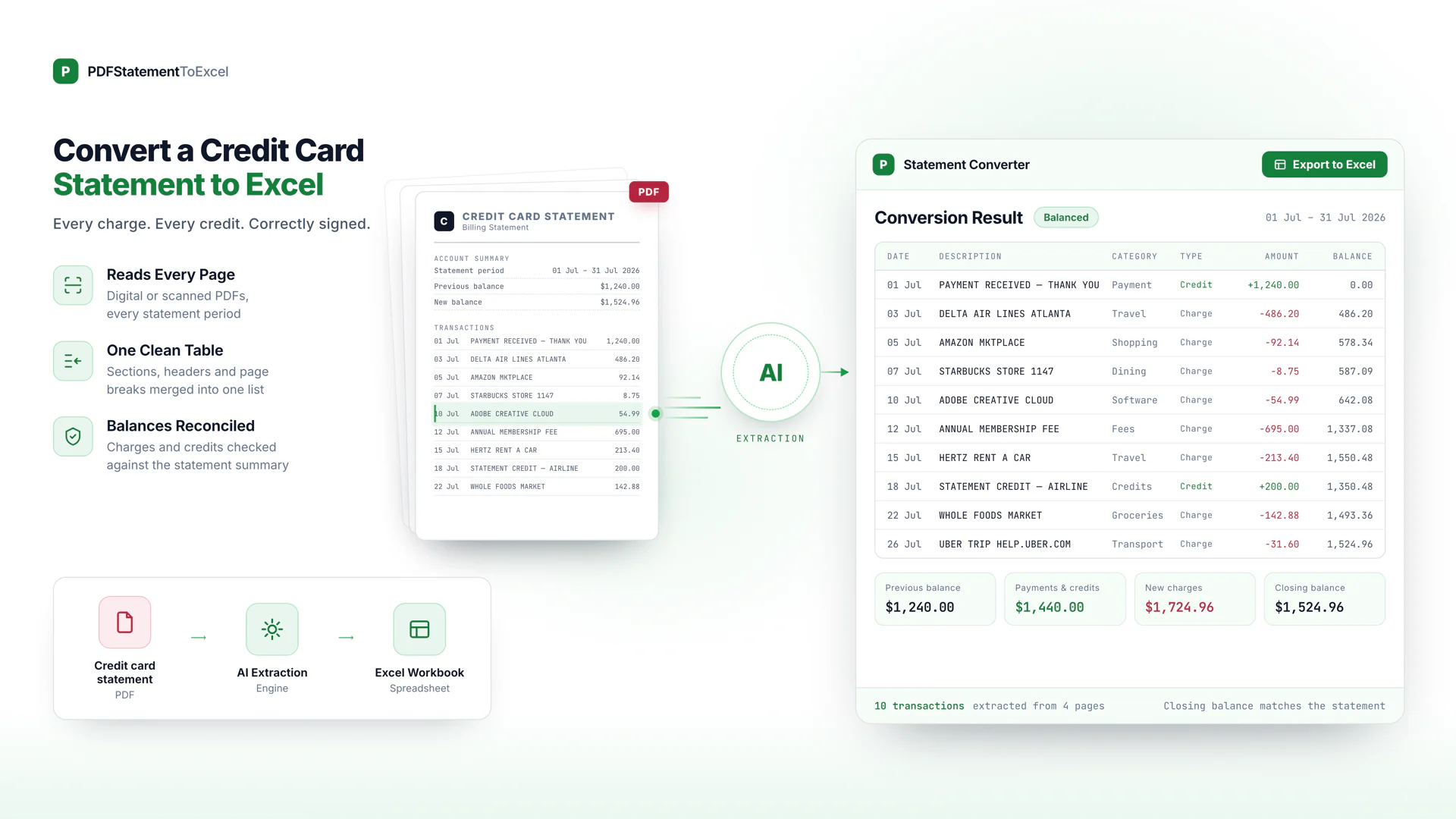
Getting a credit card statement into Excel looks like the same job as converting a chequing statement. It is not, and the difference shows up after the export rather than during it: the file opens cleanly, the rows are all there, and the total is the wrong way round.
Card statements carry the direction of a transaction differently, print no running balance, and pad the pages with rewards summaries and interest tables that look like transactions to anything reading raw text. This guide covers what to do about each, and how to check the result before it reaches your books.
Short on time? Upload the statement PDF to the converter and take the result as Excel. Charges and payments come back in their own columns, and every export is checked against the statement's own closing balance. The free plan covers 30 pages a month.
What this covers
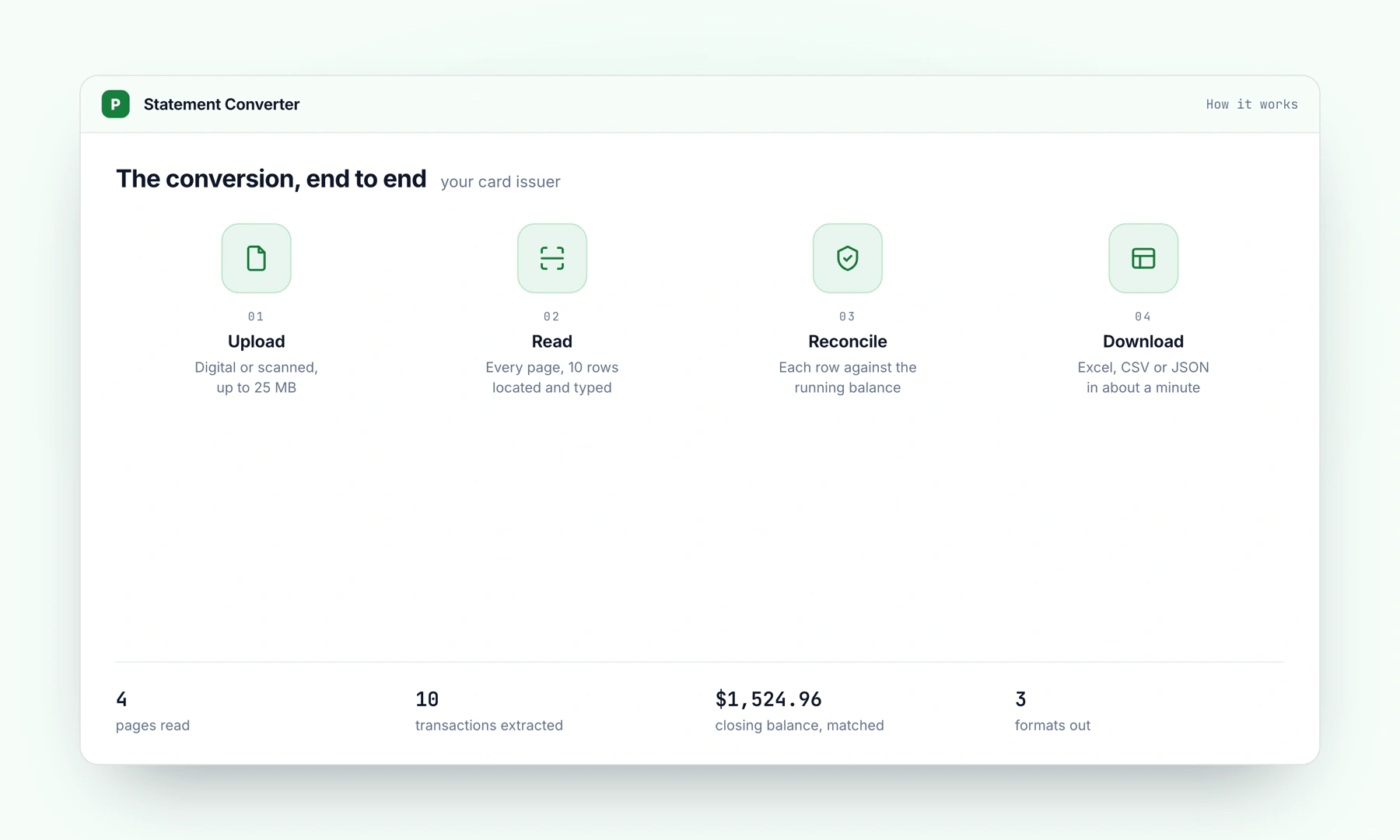
Why a card statement is not a bank statement
Three differences matter, and all three break naive conversions.
The sign is inverted. On a chequing account, money leaving reduces the balance. On a card, a purchase increases what you owe and a payment reduces it. A converter that treats the card like a bank account produces a file where your monthly payment reads as spending.
There is no running balance. Bank statements print a balance after every line, which is the single most useful column for catching an extraction error. Card statements print a summary block instead: previous balance, purchases, fees, interest, payments and credits, new balance. That block is the only arithmetic on the page, and it is what a conversion has to be checked against.
The direction lives in the layout, not in the number. Some issuers print payments in a separate column. Some append CR to the amount. Some use a minus sign, and some use brackets. Read the number in isolation and you lose the distinction — which is exactly what happens when a PDF is treated as a stream of text rather than as a table.
Where to find the statement PDF
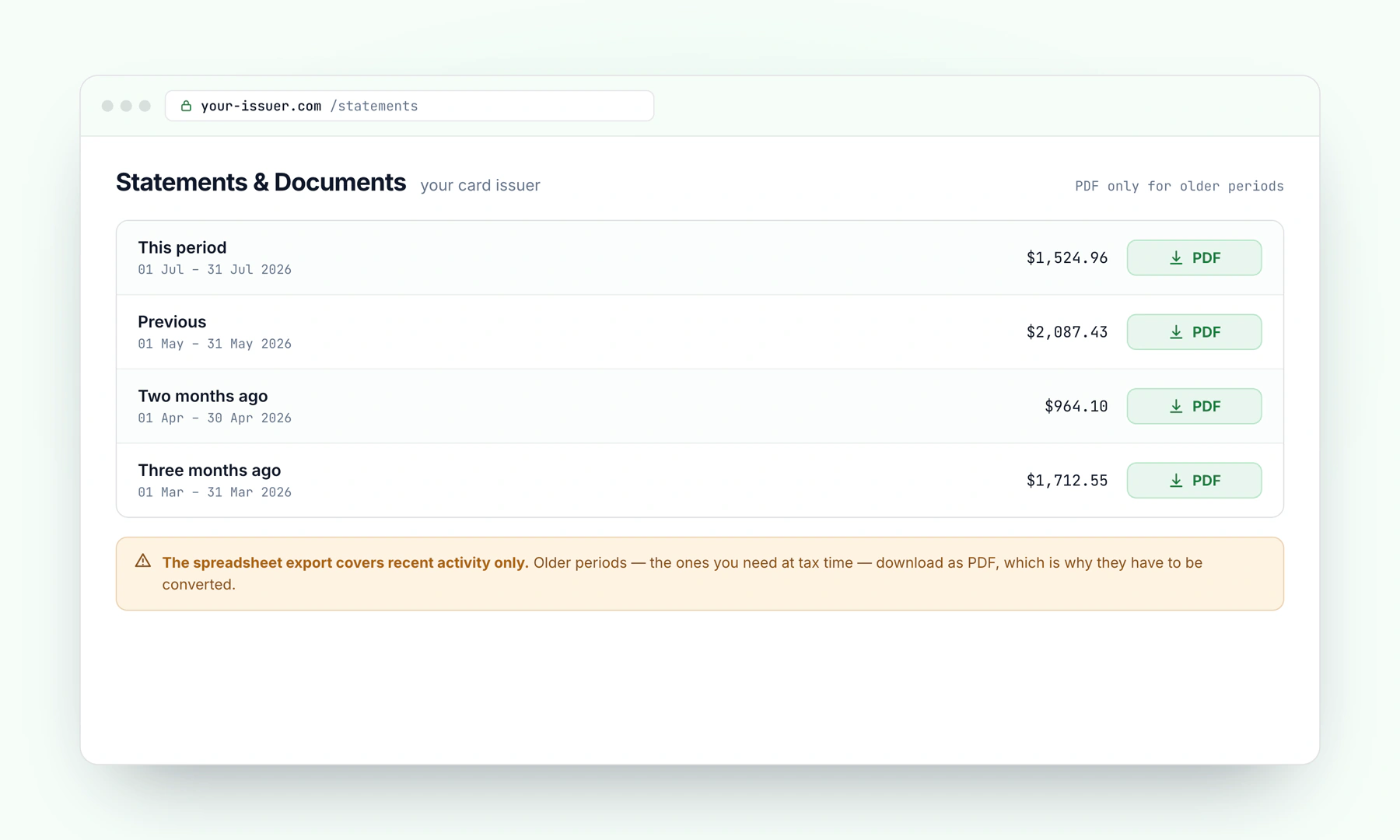
Every major issuer keeps monthly statements as PDFs, usually for two to seven years, under a heading like Statements & Documents in the web account. The mobile app usually shows fewer months than the website, so use a browser if you need a full year.
Two things to get right while you are there. Download the statement PDF, not the transaction list — the statement is the document with the summary block the conversion gets checked against. And if the issuer offers a CSV or OFX download for the period you need, take it: a direct export from the source always beats converting a document. The reason this page exists is that card exports are usually capped at the last 90 days to 18 months, while the PDFs go back years.
Three methods, compared
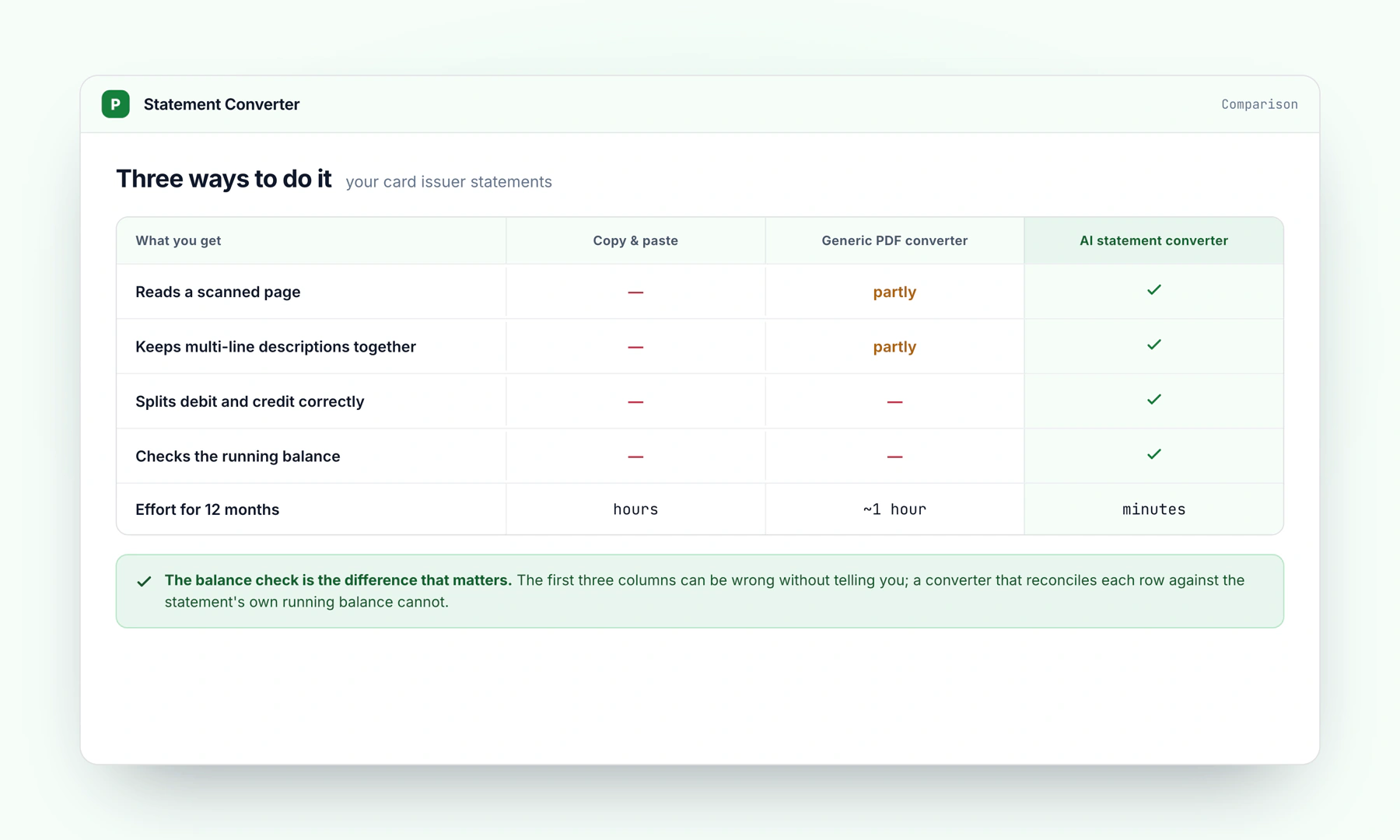
There are three realistic ways to get card transactions into a spreadsheet, and they fail differently.
| Method | Time for 12 months | Where it breaks | Worth it when |
|---|---|---|---|
| Copy and paste from the PDF | 2–4 hours | Wrapped merchant names split into extra rows; columns merge into one; CR markers are lost | One statement, few transactions, and you will check every line anyway |
| Generic PDF-to-Excel converter | 10–20 minutes | Reads the page as text, so rewards summaries and interest tables arrive as transactions and the direction is guessed from a minus sign that may not be there | The statement is a plain single-column table with no extras |
| Statement converter that reads the layout | Under a minute per statement | Poor scans still degrade accuracy, as they do for any OCR | More than one statement, or the numbers have to reconcile |
The middle row is the one that costs people time, because the output looks finished. A generic converter gives you a spreadsheet with the right number of columns and no indication that a third of the rows are page furniture and a handful have the wrong sign. See OCR versus AI extraction for what the difference looks like on the page.
What the finished workbook should look like
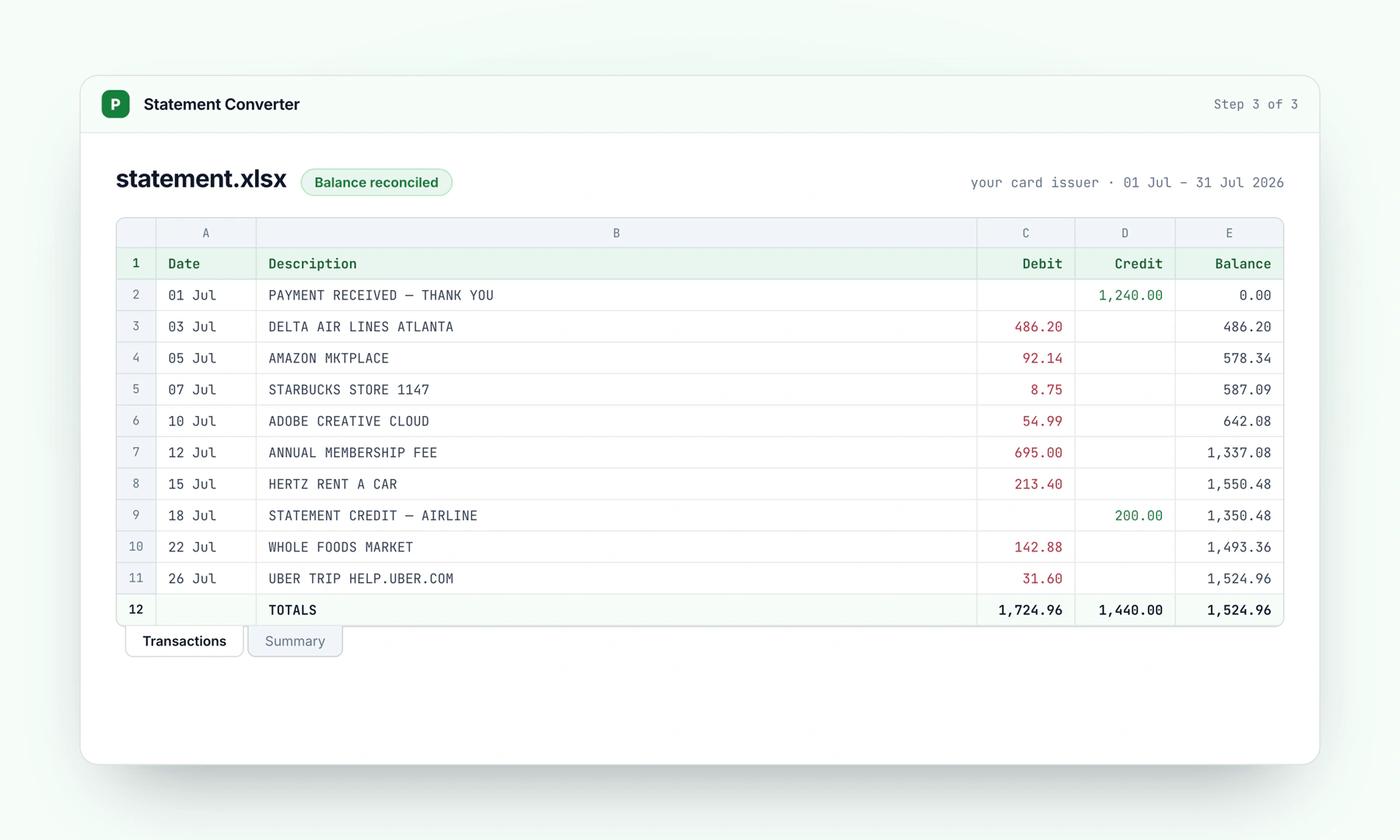
A card statement converted properly gives you six columns, and every one of them earns its place:
| Column | Holds | Why it is separate |
|---|---|---|
| Date | Real Excel dates, not text | Sorts and filters; a text date does neither |
| Description | The merchant, on one line | Wrapped names rejoined, so a lookup or a category rule can match |
| Debit | Purchases, fees, interest, cash advances | Everything that increases what you owe |
| Credit | Payments, refunds, statement credits | Everything that reduces it — kept apart so the direction cannot be lost |
| Balance | The balance carried forward from the previous balance, row by row | Card statements do not print one; this is computed, and it is what makes an error visible |
| Account | The card or cardholder the rows belong to | Corporate statements group by cardholder |
Amounts come out as numbers, not text with a currency symbol in front — a figure like $1,240.00 in a cell is a string, and it will not sum. If you need the file in another shape, CSV and JSON are the same rows in a different container.
Five layout problems specific to card statements
These are the ones that turn up on card statements and almost never on bank statements.
1. The statement period is not a calendar month. A cycle closing on the 17th means a January statement holds transactions from mid-December. If you are building a month, you will need two statements and a date filter, not one statement.
2. Foreign transactions print twice. A purchase abroad shows the original currency and amount, then the converted figure, then often a separate foreign transaction fee. Three lines, one purchase, two of which are real charges. Take the converted amount and keep the fee; drop the original-currency line or it double-counts.
3. Cash advances and interest arrive in their own tables. Most issuers print interest charged by category — purchases, cash advances, balance transfers — in a table near the end. Those figures are usually already included in the transaction list. Adding both is the most common way a converted card statement overstates spending.
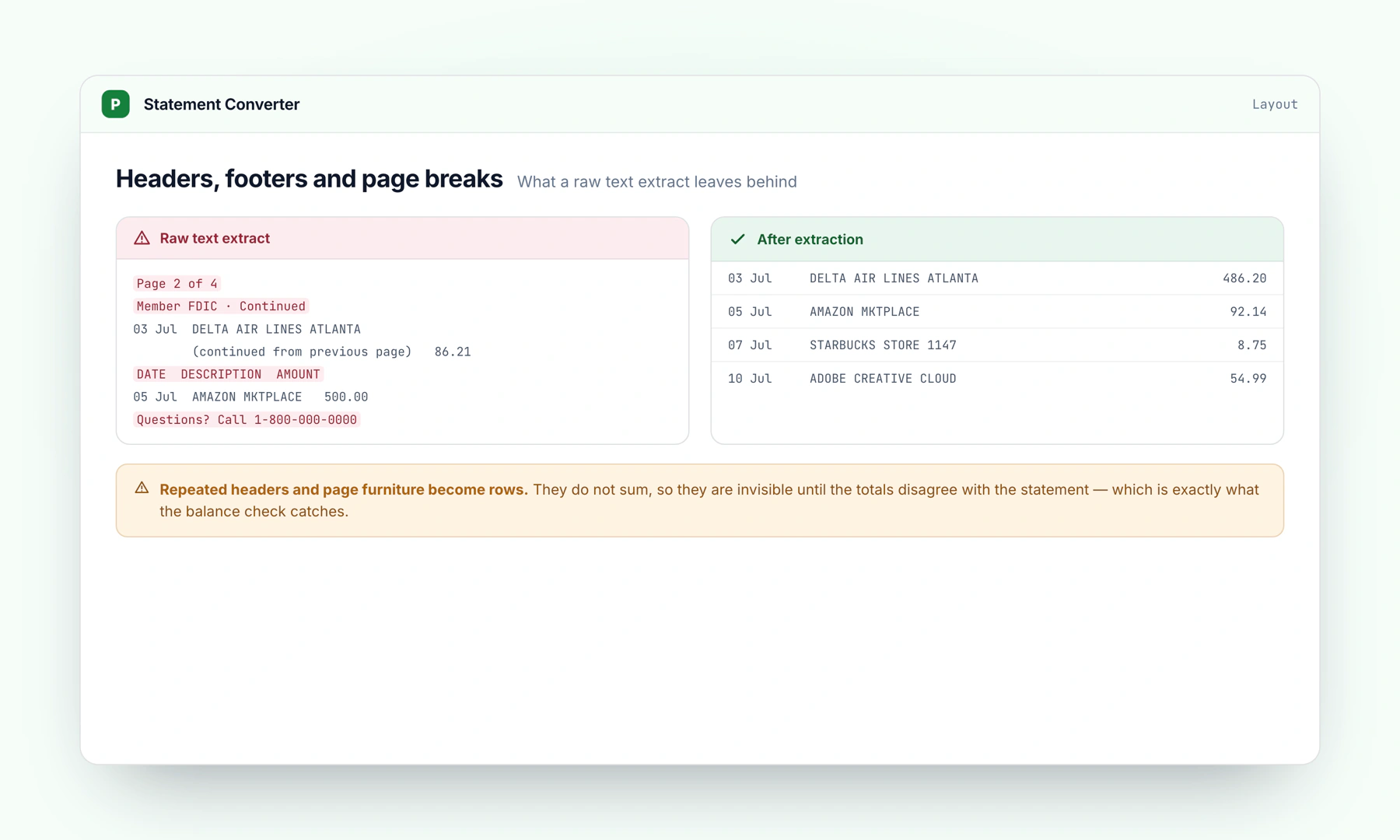
4. Rewards summaries look like transactions. Points earned, points redeemed and a running points balance sit in a block with dates and numbers, and a text extractor cannot tell it from the charges above it. Reward points are not money and do not belong in the workbook.
5. Corporate cards repeat the header per cardholder. A statement with eight cardholders repeats its column headings eight times. Those repeats become junk rows unless the reader understands it is looking at sections of one document.
Importing into QuickBooks, Xero and Google Sheets
A card is a liability account in every accounting package, which changes what the import expects. Get this wrong and the transactions land with the right amounts and the wrong effect on the account.
| Destination | Wants | Delete before importing |
|---|---|---|
| QuickBooks Online | Date, Description, Amount — or Date, Description, Credit, Debit | The balance column; the word "amount" in the Credit and Debit headers |
| Xero | One signed Amount column: money in positive, money out negative | The balance column, and the account number if present |
| Google Sheets | Anything, but set the locale first or the dates re-order themselves | Nothing — but format the date column before you sort |
The full specification for each, taken from the vendors' own documentation, is on the import formats reference. If QuickBooks or Xero is where these end up every month, the walkthroughs for QuickBooks and Xero cover the mapping step by step.
Check the balance before you import
Card statements do not give you a running balance to check against, but they do give you the summary block, and it is enough:
Previous balance + purchases + fees + interest − payments − credits = New balance
Sum the Debit column, sum the Credit column, and run that arithmetic against the figures printed on the statement. If it lands, every transaction is present and pointing the right way. If it is out by exactly twice a transaction, that transaction has the wrong sign. If it is out by the value of one row, a row is missing or duplicated.
Our own conversions run this check before you download, which is what catches a charge read as a payment: the arithmetic stops working, and where the correction is unambiguous it is applied. The reconciliation guide covers the same check for accounts that do print a running balance.
Before you convert anything sensitive: a statement protected with a password has to be opened and saved without one first — there is no decryption on our side, so a locked file is refused rather than half-processed. Uploads are deleted from our servers when the job ends, and the workbook we produce is deleted within 24 hours.
Frequently Asked Questions
How do I convert a credit card statement to Excel?
Download the monthly statement PDF from your card issuer, upload it to pdfstatementtoexcel.com, choose Excel, CSV or JSON, and download the result. Charges and payments come back in separate columns, so the direction of each transaction survives the export. The free plan covers 30 pages a month.
Why do the amounts come out backwards when I convert a card statement?
Because most converters read the amount column and nothing else. On a card statement the direction is carried by the column a figure sits in, or by a CR marker after it, rather than by a minus sign. Read the number alone and a payment lands in your spreadsheet as another purchase. Keeping charges and payments in separate columns is what prevents it.
Can I convert a credit card statement without the running balance?
Yes, and you will have to: card statements do not print a per-transaction running balance the way bank statements do. They print a summary instead — previous balance, purchases, fees, payments and credits, new balance. That summary is what the conversion is checked against.
Does this work for business and corporate card statements?
Yes. Statements that group transactions by cardholder convert the same way; each section is read in turn and the cardholder stays with the rows that belong to it. Amex, Visa, Mastercard and Discover layouts are all supported, and there are dedicated pages for 56 institutions.
Convert a card statement now
Upload the PDF and take the result as Excel, CSV or JSON, with charges and payments in their own columns.
Convert a statement