
A scanned bank statement is the hardest document in bookkeeping. It's a photo of a page — not data — so Excel can't open it, copy-paste doesn't work at all, and classic OCR tools mangle the numbers. Yet scanned statements are everywhere: older archives, statements a client photographed with their phone, faxed records for a loan file, or printouts from a branch. This guide shows you exactly how to convert a scanned bank statement to Excel with accuracy you can actually trust, step by step, and how to verify the output so no digit is silently wrong.
Short on time? Upload the scanned PDF (or photo) to our AI converter — it reads scans the way a person does and validates every row against the statement's running balance. Your first conversion is free, no signup.
Why Scanned Statements Break Normal Tools
A digital PDF downloaded from your bank contains real text — the characters are stored in the file, so software can read them directly. A scanned statement contains none of that. It's pixels: a picture of text, often slightly rotated, unevenly lit, with coffee-ring shadows, staple marks, or the compression artifacts phone cameras add.
That difference is why each of the usual approaches fails:
- Copy-paste: there is literally nothing to copy. Selecting text in a scan selects nothing.
- Excel's "Get Data from PDF": works only on digital PDFs with embedded text tables. On a scan it returns an empty result.
- Classic OCR: converts pixels to characters one glyph at a time, with no understanding of what a transaction is. On bank statements it confuses 5/S, 0/O, 1/l/7, drops minus signs, and merges columns — and a single misread digit changes an amount without any warning.
We covered the failure modes of raw OCR in depth in OCR bank statement problems (and the AI solution). The short version: OCR gives you characters, but a statement needs structure — dates in one column, descriptions in another, debits and credits correctly signed, in order.
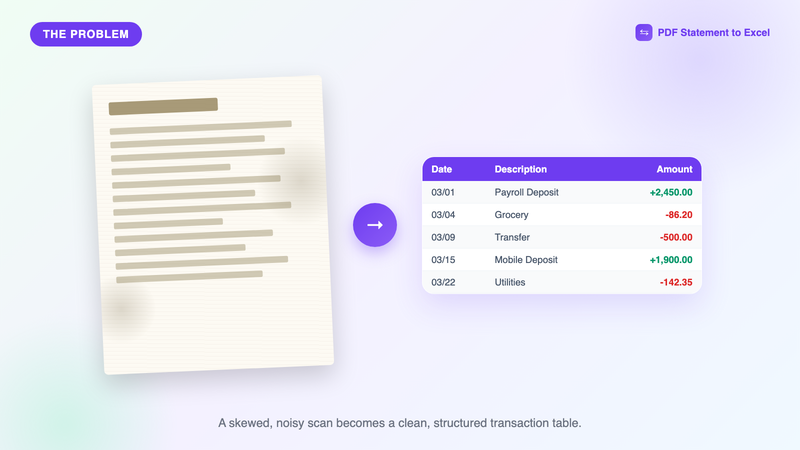
Modern AI document models change this. They look at the whole page the way a human does — recognizing the table visually, tracking rows across wrapped lines and page breaks, and reading amounts in context, so a smudged digit gets cross-checked against the running balance instead of being guessed. That's the approach this guide uses.
Before You Start: Get the Best Possible Scan
The converter can handle imperfect scans, but thirty seconds of care at capture time raises accuracy on truly rough documents:
- Scan at 300 DPI if you're using a scanner. Below 200 DPI, small fonts in the balance column lose detail.
- Use your phone's document mode (Notes on iPhone, Google Drive scan on Android) rather than a plain photo — it deskews and flattens lighting automatically.
- Capture the full page, including the header with the statement period and the closing-balance summary. The summary is what makes balance validation possible.
- One page per image, in order. Combine them into a single PDF if you can; if not, upload the images as they are.
Step 1: Upload the Scanned Statement
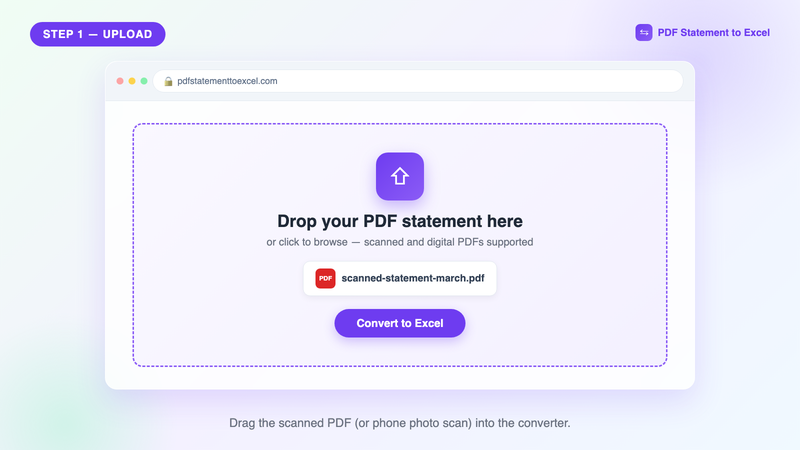
Go to the converter and drag your scanned PDF into the upload box — or click it and browse. Multi-page scans, phone-camera scans, and older low-quality photocopies are all accepted. Nothing to install, and no template to pick: the AI works out the bank and layout on its own, which matters for scans because no two scanned layouts are ever quite identical.
Files are transferred over an encrypted connection and deleted after conversion — they're never used to train models. If you're handling a client's documents, that data-handling bar is non-negotiable; see how to securely handle client bank statements for the full checklist.
Step 2: Let the AI Read the Scan
Click Convert and watch the progress. This isn't a spinner pretending to work — the percentage tracks the actual pipeline: pages are imaged and cleaned up, each transaction is located and read, and then the whole set is checked for consistency.
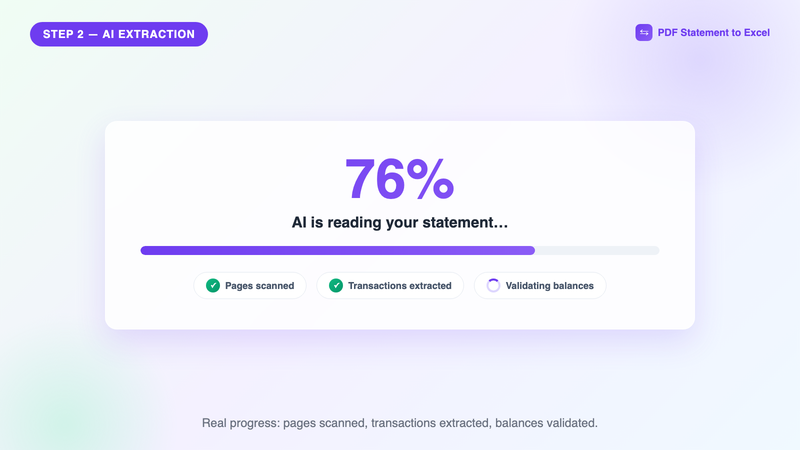
What the AI is doing behind that progress bar, in plain terms:
- Page understanding. The model views each page as an image and identifies the regions: header, summary box, transaction table, footer junk to ignore.
- Row reconstruction. Wrapped descriptions, rows that straddle a page break, and section-split layouts get stitched back into one transaction per row.
- Contextual reading. Amounts are read as amounts, dates as dates. A blurry "8" that could be a "3" isn't guessed in isolation — the running balance decides it.
For a deeper look at why this beats character-by-character OCR, see how AI extracts bank statement data.
Step 3: The Balance Check — Why You Can Trust a Scan
This is the step that separates "converted" from "correct." Most bank statements print a running balance after every transaction, plus opening and closing balances in the summary. That redundancy is a built-in audit trail: if any single amount were misread, the arithmetic chain from opening to closing balance would break at that exact row.
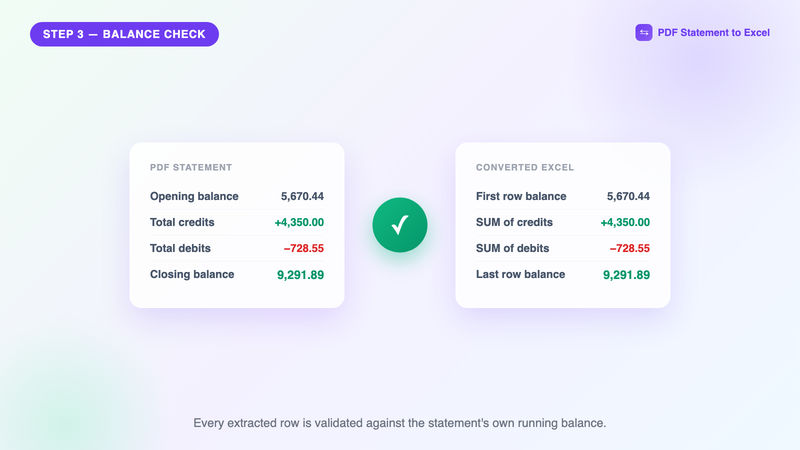
The converter runs this check automatically on every conversion: opening balance + credits − debits must equal the closing balance, row by row. When the math checks out, you have mathematical evidence — not hope — that every amount was captured correctly. It's the same discipline accountants apply manually, as described in our reconciliation best practices, done for you in seconds.
Tip: if a scan is so degraded that a row can't be read confidently, it's better to be told than to get a silent guess. Check that the row count matches the statement and the closing balance lines up — those two checks take 20 seconds and catch everything that matters.
Step 4: Download Clean Excel (or CSV / JSON)
When the conversion finishes, download the result. You get a properly typed spreadsheet — not text that looks like a table:
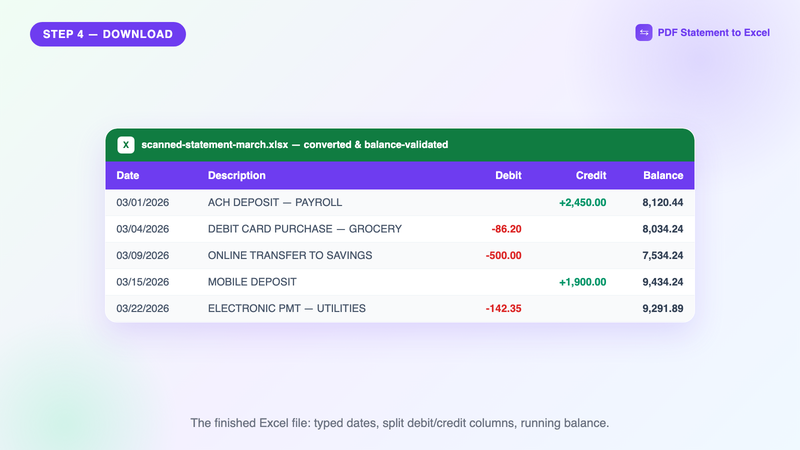
- Real dates Excel can sort and filter, with years resolved even when the scan printed only MM/DD.
- Debits and credits in separate columns, correctly signed — so SUM() works immediately.
- Running balance preserved, so you (or your accountant) can re-verify any row later.
- No page headers, footers, or ads mixed into the data.
Prefer CSV for importing into QuickBooks or Xero, or JSON if you're feeding an automation? The same conversion downloads in all three formats — see our guides for QuickBooks and Xero imports.
Scanned vs. Digital PDF: What Changes?
| Aspect | Digital PDF | Scanned PDF / photo |
|---|---|---|
| Contains real text? | Yes | No — pixels only |
| Copy-paste possible? | Partially (messy) | Not at all |
| Classic OCR accuracy | Decent on clean tables | Poor — digit errors, merged columns |
| AI converter accuracy | ~99%+ | ~99%+ on readable scans, balance-validated |
| Extra prep needed | None | Good capture helps (300 DPI / document mode) |
| Verification | Balance check | Balance check — even more important |
Common Problems With Scanned Statements (and Fixes)
The scan is rotated or skewed
Slight rotation is handled automatically. If a page was scanned fully sideways or upside down, rotate it in any PDF viewer before uploading — that's the one fix worth doing manually.
Some pages are missing
The balance check will expose this: the chain from opening to closing balance won't reconcile, telling you a page (and which range) is missing. Re-scan the missing page and convert again.
The photo has glare or a shadow across the amounts
Re-capture with the page flat and light coming from the side. Phone document mode usually eliminates this in one retake.
It's a 40-page year-end archive
Upload it whole. Long scans convert the same way — and converting a year of statements at once is exactly the batch workflow bookkeepers use for client onboarding, as covered in automating data entry for bookkeepers.
What About Handwritten or Foreign-Language Statements?
Printed statements in other languages and scripts convert fine — the AI reads layout and numbers universally, and we support banks worldwide (see supported banks). Handwritten ledgers are a different problem class: results vary with legibility, so always lean on the balance check before trusting the output.
Bottom line: a scanned statement doesn't have to mean an afternoon of retyping. Capture it cleanly, upload it, let the balance check prove the numbers, and get on with the actual work. Start with the scan on your desk — convert it free now.
Frequently Asked Questions
Can Excel open a scanned bank statement directly?
No. A scan contains only an image of the page, not text, so Excel's PDF import returns nothing. The scan first has to be converted to structured data — an AI converter does this and outputs a ready-made Excel file.
How accurate is AI conversion on scanned statements?
On readable scans, accuracy is comparable to digital PDFs (~99%+), because every extracted amount is validated against the statement's running balance — a misread digit breaks the balance math and gets caught instead of passed through silently.
Can I convert a photo of a bank statement taken with my phone?
Yes. Use your phone's document-scan mode (iPhone Notes or Google Drive) for best results, capture the whole page including the balance summary, and upload the resulting PDF or image.
What if my scan is low quality or has missing pages?
The balance check exposes both problems: if a page is missing or a row is unreadable, the opening-to-closing balance chain won't reconcile, telling you exactly where the gap is. Re-scan that page and convert again.
Convert your scanned statement now
Upload a scan or phone photo and download balance-validated Excel in under a minute. First conversion free — no signup.
Get Started Free