
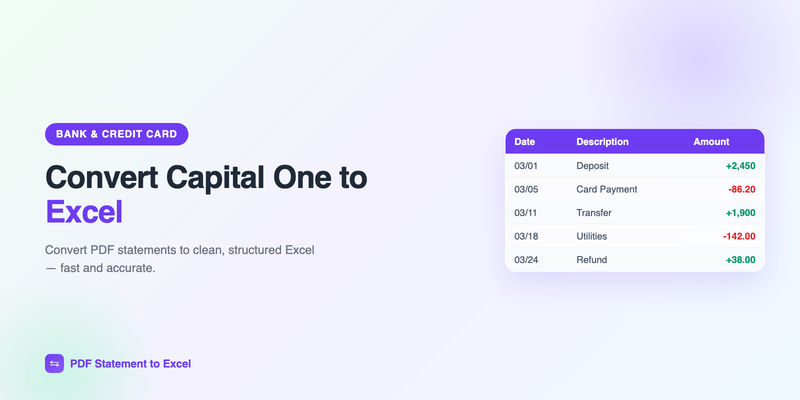
Capital One is a digital-first bank, which is great for day-to-day banking but doesn't change one stubborn fact: your statements still arrive as PDFs. Whether it's a 360 Checking account or a Capital One credit card, when you need the transactions in a spreadsheet — for budgeting, expense tracking, or your accountant — the PDF stands in the way.
Here's how to convert a Capital One statement into clean Excel data, with three methods and the specific things to watch for with Capital One's layout.
The fast way: download your statement from Capital One, upload it to PdfStatementToExcel, and download the Excel file — about two minutes, no typing.
Download your Capital One statement as a PDF
- Sign in to Capital One at capitalone.com (or the mobile app).
- Select the account — bank account or credit card.
- Open Statements (under account details or "View Statements").
- Choose the statement period and download the PDF.
Capital One credit card statements and 360 bank statements have slightly different layouts, but both convert the same way. If a file is password-protected, unlock and re-save it first.
Method 1: AI converter (fastest and cleanest)
- Open the Capital One conversion page. First conversion, no signup.
- Upload the PDF.
- The tool identifies each transaction and rebuilds it into columns.
- Download the Excel or CSV file — one row per transaction.
Capital One credit card statements group transactions by cardholder and category, with payment and fee sections. An AI converter that understands statement structure keeps these straight instead of flattening them into a jumble.
Credit card tip: on card statements, check that payments and credits carry the correct sign (negative for what reduces your balance) after conversion, then reconcile against the statement's new balance.
Method 2: Copy and paste into Excel
For a one-off, copy the transaction rows from the PDF, paste into Excel, and use Data → Text to Columns to split the fields. Expect to clean up wrapped merchant names and re-align amounts. Fine for a page; tedious for a full statement.
Method 3: Generic PDF-to-Excel tools
These automate extraction but don't understand card statements specifically, so category subtotals and multi-line merchant descriptions frequently break the columns. Check the output carefully.
Which method should you choose?
| Method | Speed | Accuracy | Best for |
|---|---|---|---|
| AI converter | ~2 minutes | High | Card or bank statements, any volume |
| Copy & paste | 15–45 min | Depends on cleanup | A single short statement |
| Generic PDF software | ~5 min + fixes | Variable | Simple layouts only |
Tips for clean Capital One conversions
- Use the original downloaded PDF, not a screenshot.
- Separate card and bank statements into different files.
- Verify signs on payments, credits, and refunds after conversion.
- Reconcile the ending balance before using the data.
With your Capital One transactions in Excel, you can categorize spending, track your credit card activity month over month, or import into QuickBooks. For the import step, see our guide on using a bank statement converter for QuickBooks.
Frequently Asked Questions
How do I download my Capital One statement?
Sign in at capitalone.com or the app, select the account or card, open Statements, choose the period, and download the PDF.
Can I convert a Capital One credit card statement to Excel?
Yes. Capital One credit card statements convert the same way as bank statements. An AI converter keeps category sections and multi-line merchant descriptions correctly structured.
Is Capital One statement conversion free?
You can convert your first Capital One statement free with no signup. Regular or high-volume use is better served by a paid plan.
Why do amounts have the wrong sign after converting a card statement?
Different statements format payments and credits differently. A good converter assigns signs correctly; always spot-check a few and reconcile the ending balance.
Convert your Capital One statement now
Upload your Capital One PDF and get a clean Excel file in under two minutes. No signup needed for your first conversion.
Get Started Free