
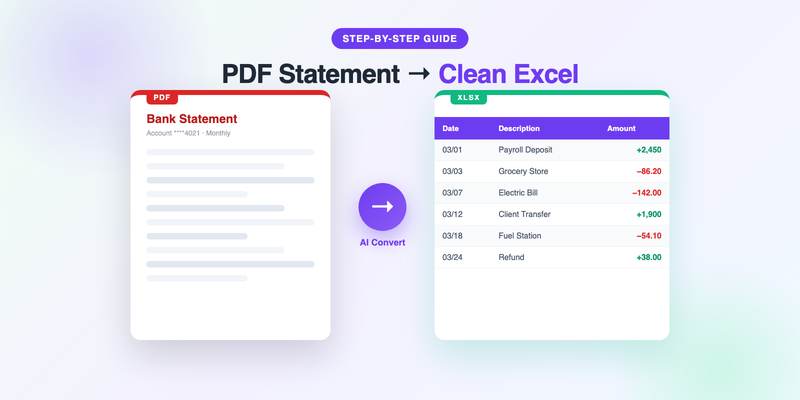
Wells Fargo gives you your monthly statement as a PDF. It's clean, it's readable, and it's completely useless the moment you need to do anything analytical with it — categorize spending, build a budget, hand transactions to your accountant, or import them into QuickBooks. PDFs are made for looking at, not for working with.
The good news: turning a Wells Fargo statement into a proper Excel spreadsheet is straightforward once you know the options. This guide covers three methods, from the fastest to the most tedious, and explains exactly how to get clean columns of dates, descriptions, and amounts you can actually use.
The fast version: download your statement PDF from Wells Fargo Online, upload it to PdfStatementToExcel, and download the Excel file. The whole process takes about two minutes and requires no manual typing. The rest of this article explains the details and the alternatives.
First, download your Wells Fargo statement as a PDF
Before you can convert anything, you need the statement file. Here's how to get it from Wells Fargo:
- Sign in to Wells Fargo Online at wellsfargo.com.
- From your account summary, select the account whose statement you want.
- Open the Statements & Documents section (sometimes under "Account Services" or a similar menu).
- Choose the statement period you need and download it. Wells Fargo provides statements as PDF files.
- Save the PDF somewhere you can find it — you'll upload this file in the next step.
A few things worth knowing. Wells Fargo keeps several years of statements online, so you can pull historical periods for tax season or an audit. If you need something older than what's shown, you can usually request it, though a fee may apply. And if your PDF is password-protected, remove the password first (open it, enter the password, then re-save or print to a new PDF) so the converter can read it.
Method 1: Use an AI bank statement converter (fastest)
This is the method we recommend for almost everyone, because it takes minutes and produces clean, structured output without any manual work.
Step by step
- Go to the converter. Open the Wells Fargo conversion page on PdfStatementToExcel.
- Upload your PDF. Drag the statement file in, or click to browse and select it. Your first conversion needs no signup.
- Let it process. The tool reads the statement, identifies each transaction, and rebuilds the data into columns — typically date, description, and amount, plus running balance where the statement includes one.
- Download the Excel file. You get an XLSX (or CSV) with one row per transaction, ready to sort, filter, and total.
Why this beats the alternatives: a good AI converter understands the shape of a Wells Fargo statement. It knows that a transaction description wrapping onto a second line still belongs to one transaction, that a deposit and a withdrawal have opposite signs, and that the running balance column is not a transaction amount. That structural understanding is what produces a spreadsheet you can trust rather than one you have to untangle.
Always reconcile: after converting, check that the closing balance in your spreadsheet matches the closing balance printed on the statement. This 30-second check catches any stray issue before the numbers reach your books.
Method 2: Copy and paste into Excel (free, but fiddly)
If you have a single short statement and no budget, you can do it by hand. Be warned that Wells Fargo PDFs rarely paste cleanly.
- Open the PDF and select the transaction rows you want.
- Copy them, then paste into a blank Excel sheet.
- Most likely, everything lands in a single column. Use Data → Text to Columns to split it, choosing a delimiter (space or a fixed width) that separates date, description, and amount.
- Clean up the wreckage: fix descriptions that wrapped across lines, re-align amounts that jumped columns, and correct any dates that merged with adjacent text.
This works, but "Text to Columns" struggles whenever descriptions contain spaces (they always do) or amounts vary in width. For a page or two it's tolerable. For a full year of statements it becomes genuinely painful, which is exactly why automated tools exist.
Method 3: Generic PDF-to-Excel software
General-purpose "PDF to Excel" tools sit between the two methods above. They automate the extraction but don't understand bank statements specifically, so they treat the page as a generic table. On a tidy statement you might get usable output; on a typical Wells Fargo layout with wrapped descriptions and a running balance, columns often end up misaligned. If you already own such software, it's worth a try — just inspect the result carefully before trusting it.
Which method should you choose?
| Method | Speed | Accuracy | Best for |
|---|---|---|---|
| AI converter | ~2 minutes | High | Anyone converting regularly, or with more than a page or two |
| Copy & paste | 15–45 minutes | Depends on your cleanup | A single short statement, zero budget |
| Generic PDF software | ~5 minutes + fixes | Variable | Simple layouts, if you already own a tool |
For the vast majority of people, the AI converter wins on every axis that matters: it's faster, more accurate on Wells Fargo's specific layout, and it scales effortlessly from one statement to a year's worth.
Tips for clean Wells Fargo conversions
- Use the original PDF, not a scan or screenshot. A native PDF downloaded from Wells Fargo Online converts far more accurately than a photo of a printout.
- Remove passwords first. Encrypted PDFs can't be read until the password is stripped.
- Convert one account per file. If your PDF bundles multiple accounts, results are cleaner when each account is handled separately where possible.
- Check the date format. Confirm the output uses the date format your spreadsheet or accounting software expects, and reformat the column once if needed.
- Reconcile the closing balance. It's the single best sanity check that nothing was dropped or duplicated.
Once your Wells Fargo transactions are in Excel, you can do all the things the PDF wouldn't let you: build a monthly budget, categorize spending with a pivot table, or import the file into QuickBooks or Google Sheets. If your workflow lives in Sheets, our guide on importing bank transactions into Google Sheets picks up right where this one leaves off.
Frequently Asked Questions
How do I download my Wells Fargo statement as a PDF?
Sign in to Wells Fargo Online, select your account, open the Statements & Documents section, choose the statement period, and download it. Wells Fargo provides statements as PDF files, with several years of history available online.
Can I convert a Wells Fargo statement to Excel for free?
Yes. You can convert your first Wells Fargo statement free with no signup using PdfStatementToExcel. You can also do it manually by copying transactions into Excel and using Text to Columns, though that takes more time and cleanup.
Why do my Wells Fargo transactions look scrambled when I paste them into Excel?
PDF text often pastes into a single column, and transaction descriptions contain spaces that confuse Excel's Text to Columns tool. A dedicated bank statement converter avoids this by understanding the statement's structure and placing each field in the correct column.
Is it safe to upload my Wells Fargo statement to a converter?
With a reputable tool, yes. Look for encryption, a clear policy that files are deleted after conversion, and confirmation that your data is not used to train models. Remove any PDF password before uploading.
Convert your Wells Fargo statement now
Upload your Wells Fargo PDF and get a clean Excel file in under two minutes. No signup needed for your first conversion.
Get Started Free