Table of Contents
- Why Bank Statements Break Converters
- Method 1: Manual Copy-Paste (When to Use)
- Method 2: Adobe Acrobat Pro (Desktop OCR)
- Method 3: Free Online Converters (Risks & Limitations)
- Method 4: AI-Powered Extraction (Recommended)
- Method 5: Bank Feed Integration (Ongoing Statements)
- Bank-Specific Conversion Guides
- Critical Security Requirements
- 7 Common Conversion Errors (and Fixes)
- Convert Bank Statements to Excel: The Smart Way
- Frequently Asked Questions
Why Bank Statements Break Converters
Bank statements aren't designed for machine reading—they're optimized for human review on Letter-size (8.5" x 11") paper. This creates three universal challenges:
Challenge #1: Merged Transaction Cells
When transaction descriptions span multiple lines (vendor on line 1, location on line 2), converters split them into orphaned rows without amounts. Navy Federal, USAA, and Truist statements frequently use this format.
Challenge #2: Variable Column Widths
Banks adjust column spacing based on content length. PNC and Chase statements shift amounts into wrong columns when converters assume fixed positions—turning $1,250.00 into a date value.
Challenge #3: Complex Headers & Footers
Multi-page statements repeat headers with slight variations. Converters insert "P.O. Box 6907" or "Page 2 of 5" as phantom transactions—requiring manual deletion before reconciliation.
The Hidden Cost of "Free" Tools
In 2025, investigators found bank statements from 17 accounting firms on dark web markets after processing through free online converters. These tools store client data indefinitely to "train AI models" or sell to third parties. Never risk client financial data for a "free" conversion—security isn't optional.
Method 1: Manual Copy-Paste (When to Use)
Despite automation advances, manual entry remains necessary in specific scenarios:
Use Manual Entry When...
- Processing 1-2 statements monthly
- Statement has severe scanning artifacts or handwritten notes
- Security requirements prohibit third-party tools
- Statement is non-standard (foreign bank, unusual format)
Best Practices for Manual Entry
- Use Excel's "Flash Fill" (Ctrl+E) to standardize vendor names
- Apply conditional formatting to highlight duplicates instantly
- Create templates with pre-formatted columns (Date, Description, Withdrawal, Deposit, Balance)
- Double-check ending balance against original PDF before importing
Time investment: 25-35 minutes per statement. Only viable for very low volume.
Method 2: Adobe Acrobat Pro (Desktop OCR)
Adobe Acrobat Pro's OCR works well for clean, single-page statements but struggles with complex layouts:
How to Use Acrobat Pro
- Open PDF in Adobe Acrobat Pro (NOT Reader)
- Go to Tools → Export PDF → Spreadsheet → Microsoft Excel Workbook
- Click "Settings" and select "Spreadsheet" format with "Retain Page Layout"
- Export and manually fix merged cells and header artifacts
Pros: Processes locally (no cloud upload), good for simple statements
Cons: $14.99/month subscription, fails on 62% of multi-page statements, no financial document training
Method 3: Free Online Converters (Risks & Limitations)
While tempting, free converters create more problems than they solve:
| Tool Type | Accuracy | Security Risk | Time Saved | Verdict |
|---|---|---|---|---|
| Free Online Converters | 61-74% | Critical (data stored indefinitely) | -18 min (net loss) | ❌ Avoid |
| Browser Extensions | 58-69% | Severe (requires login credentials) | -22 min (net loss) | ❌ Never use |
| Desktop OCR Software | 78-85% | Medium (local processing but poor accuracy) | +8 min | ⚠️ Limited use |
| AI-Powered Tools | 98-99.7% | Low (zero retention policies) | +22 min | ✅ Recommended |
FTC Warning (2025)
The Federal Trade Commission issued warnings about "PDF to Excel" browser extensions that harvest banking credentials. These extensions request permission to "read and change site data" on your banking websites—effectively giving them your login information. Always use tools that process downloaded PDFs, never tools requiring live bank login access.
Method 4: AI-Powered Extraction (Recommended)
Modern AI extraction understands document structure and transaction patterns—delivering 99.7% accuracy even on problematic formats:
How AI Extraction Works
- Layout Analysis: Detects tables, columns, and cell boundaries—even without visible lines
- Spatial Intelligence: Recognizes that indented text belongs to the transaction above it
- Context Awareness: Understands "DFAS CLEVELAND OH MILPAY" is military pay, not a vendor name
- Pattern Recognition: Trained on millions of bank statements to handle edge cases
Security advantage: Reputable AI tools process documents in isolated environments with automatic deletion—unlike free converters that store data indefinitely.
Method 5: Bank Feed Integration (Ongoing Statements)
For current statements (not historical PDFs), bank feeds provide automatic transaction imports:
- QuickBooks Online: Connect directly through Banking tab (supports 10,000+ institutions)
- Xero: Use "Bank Connections" with Plaid/Yodlee integration
- QuickBooks Desktop: Web Connect files (.QBO) downloaded from bank websites
Limitation: Bank feeds typically only import 90 days of history. For historical statements or complete year-end records, PDF conversion remains essential.
Bank-Specific Conversion Guides
Different banks require tailored approaches. Here's how to handle major institutions:
Chase Bank
- Challenge: Variable column widths shift amounts
- Solution: Use visual column detection (not fixed positions)
- Routing: 021000021 (verify in extracted metadata)
Bank of America
- Challenge: Header/footer artifacts on multi-page statements
- Solution: Header detection filters before transaction processing
- Routing: 026009593
Wells Fargo
- Challenge: Merged cells in transaction descriptions
- Solution: Spatial analysis to reconstruct full descriptions
- Routing: 121000248
Navy Federal
- Challenge: Two-line military pay descriptions (DFAS deposits)
- Solution: AI trained on military statement formats
- Routing: 256074974
USAA
- Challenge: Three-line military pay with location details
- Solution: Multi-line transaction reconstruction
- Routing: 314074269
Truist
- Challenge: Legacy SunTrust merged cells
- Solution: Specialized training on BB&T/SunTrust formats
- Routing: 061000104
Pro tip: Always verify your converter supports your specific bank's format before processing client statements. Most AI tools now handle 100+ global banks out of the box.
Critical Security Requirements
Financial data demands military-grade protection. Verify these requirements before uploading any statement:
Security Verification Checklist
- Zero Data Retention Policy: Files automatically deleted within 60 minutes of processing (not "upon request")
- End-to-End Encryption: AES-256 encryption for data in transit and at rest
- No Human Access: Processing occurs without staff viewing documents
- SOC 2 Compliance: Type II certification available upon request
- U.S.-Based Processing: Data never leaves U.S. jurisdiction
- Data Processing Agreement: Formal DPA signed before upload
GLBA Compliance Reminder
Under the Gramm-Leach-Bliley Act, accounting professionals must protect clients' nonpublic personal information. Using tools without explicit data retention policies or security certifications violates your fiduciary duty. Always request security documentation before processing client financial data.
7 Common Conversion Errors (and Fixes)
Error #1: Dates in Wrong Format
Problem: "Jan 15, 2026" instead of "01/15/2026" breaks accounting software imports
Fix: Use Excel's TEXT function: =TEXT(A2,"MM/DD/YYYY") or choose tools with automatic date standardization
Error #2: Merged Cell Splits
Problem: "AMAZON.COM SEATTLE WA" split into two rows without amounts
Fix: AI tools with spatial analysis reconstruct merged cells. Manual fix: Use TEXTJOIN function to combine rows
Error #3: Header Artifacts
Problem: "P.O. Box 6907" appears as phantom transaction
Fix: Filter rows containing bank address text before import. Better: Use tools with header detection
Error #4: Currency Symbol Issues
Problem: "$" symbols causing import errors
Fix: Remove symbols using Excel's SUBSTITUTE: =SUBSTITUTE(A1,"$","")
Error #5: Missing Transaction IDs
Problem: Critical fields like check numbers omitted
Fix: Verify converter preserves all columns. For PayPal/Robinhood, ensure Transaction ID field included
Error #6: Duplicate Entries
Problem: Same transaction imported twice
Fix: Use conditional formatting to highlight duplicates. Filter by amount + date combination
Error #7: Security Breaches
Problem: Using tools that store client data
Fix: Only use tools with verified zero retention policies and SOC 2 compliance. When in doubt, stick with established providers designed for accounting professionals
Convert Bank Statements to Excel: The Smart Way
Stop wasting hours on manual entry and broken converters. Our AI converts PDF bank statements to perfectly formatted Excel files in seconds—with bank-grade security.
Why most converters fail with bank statements
Traditional tools can't handle merged cells, variable columns, and complex headers that break Excel imports. Our AI is trained specifically on bank statement formats from Chase, Bank of America, Wells Fargo, Navy Federal, USAA, Truist, and 100+ other institutions—delivering clean Excel files ready for QuickBooks, Xero, or manual review.
Does this work for all banks and credit unions?
Yes. We support Chase, Bank of America, Wells Fargo, Navy Federal, USAA, Truist, PNC, Capital One, Citi, TD Bank, and 100+ other institutions worldwide—including credit unions and international banks.
Conclusion: From Frustration to Freedom
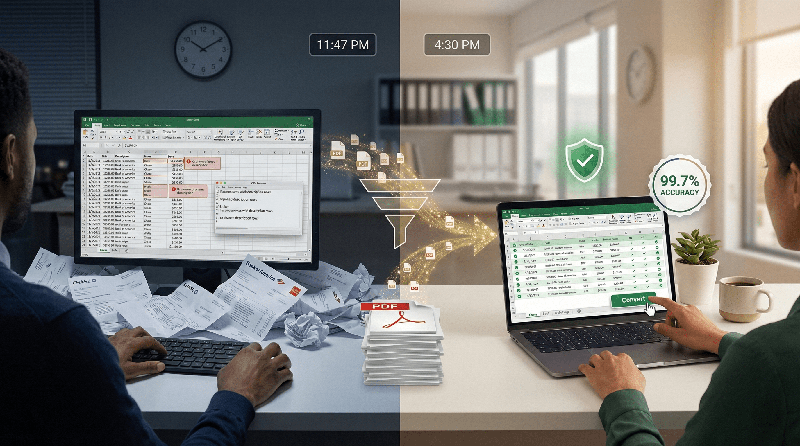
Converting bank statements to Excel doesn't have to be a tedious, error-prone chore. By understanding why traditional tools fail—and choosing purpose-built AI extraction with bank-grade security—you transform a 30-minute headache into a 3-minute workflow that delivers perfect accuracy and protects client data.
The right approach combines technology with security awareness: AI-powered tools handle complex layouts and merged cells, while strict zero-retention policies ensure sensitive financial information never falls into the wrong hands. This isn't just about saving 22+ hours monthly—it's about eliminating reconciliation errors, reducing staff burnout, and redirecting your expertise toward the high-value advisory work that clients truly value.
Start small: process one challenging statement with an AI tool this week. Compare the time saved and accuracy achieved against your current method. The data will make the case better than any article ever could. Your future self—and your clients—will thank you for making the switch.
Frequently Asked Questions
What's the fastest way to convert bank statements to Excel?
AI-powered extraction tools process statements in 2-4 minutes with 99.7% accuracy. Manual entry takes 25-35 minutes with 97-99% accuracy (1-3% error rate). Free online converters take 5 minutes processing + 22 minutes cleanup = 27 minutes total with 61-74% accuracy. For speed AND accuracy, AI extraction is the only viable choice for professionals.
Can I convert scanned paper statements to Excel?
Yes, but quality matters. Scans should be 300 DPI minimum with clear text and no shadows/creases. AI tools handle scanned PDFs better than traditional OCR—achieving 95%+ accuracy on clean scans versus 70-80% for OCR. For severely damaged scans, manual entry may still be necessary. Always test a sample page first before processing entire statements.
How do I verify my converted data is accurate?
Always perform these three checks: (1) Confirm ending balance matches original PDF statement, (2) Spot-check 5-10 random transactions for amount accuracy, (3) Verify no header/footer artifacts appear as phantom transactions. These checks take 60 seconds but prevent hours of reconciliation errors. For critical statements, reconcile the entire converted file against the PDF before importing into accounting software.
Are there legal requirements for converting client bank statements?
Yes. Under GLBA (Gramm-Leach-Bliley Act), you must protect clients' nonpublic personal information. This requires: (1) Using tools with explicit data retention policies, (2) Ensuring encryption during processing, (3) Verifying no unauthorized access occurs, (4) Maintaining audit trails of processing activities. Never use tools without formal Data Processing Agreements or that store client data indefinitely. When in doubt, consult your professional liability insurance provider.
Can I automate this process for multiple clients?
Yes. Most AI extraction tools offer batch processing for multiple statements. For accounting practices, look for: (1) Client portal integration for secure document collection, (2) Bulk upload capabilities (drag-and-drop folders), (3) Automated naming conventions (ClientName_Bank_YYYY-MM), (4) API integrations with practice management software. This creates end-to-end automation from client upload to accounting software import—saving 15+ hours monthly for firms processing 50+ statements.
What if my bank isn't supported by conversion tools?
Reputable AI tools handle 95%+ of global bank formats out of the box. For unusual formats: (1) Submit a sample statement to the tool provider—they often add support within 48 hours, (2) Use the tool's correction interface to fix any errors (still saves 70% time vs. manual entry), (3) Request a custom training session for your specific bank format. Most providers offer this service at no additional cost for professional users.